Gesture Controls in Apps
Gesture controls have transformed how
we interact with mobile applications, moving beyond simple taps to a more
fluid, "invisible" interface. By leveraging natural human movements,
developers can maximize screen real estate and make navigation feel more
organic.
1. Core Gesture Patterns
Most modern apps rely on a
standardized set of movements that users have subconsciously learned.
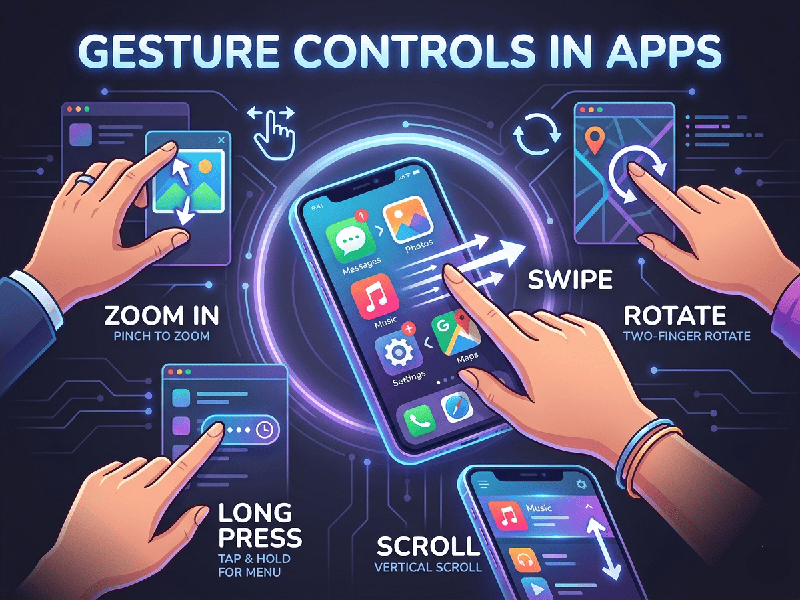
- Tap and Double-Tap: The digital equivalent of a
mouse click. Used for selection or "liking" content (common in
social media).
- Long Press (Press and Hold): Often used to reveal hidden
menus, select multiple items, or enter "edit mode."
- Swipe (Horizontal &
Vertical): * Horizontal:
Switching between tabs, deleting items (swipe-to-delete), or browsing
image carousels.
o Vertical: Scrolling through feeds or pulling
down to refresh content.
- Pinch and Spread: The universal gesture for
zooming in or out on photos and maps.
- Drag and Drop: Used for reordering lists or
moving files between folders.
2. Advanced & System-Level
Gestures
With the removal of physical
"Home" buttons on most flagship phones, system gestures have become
essential.
- Edge Swipes: Swiping from the left or right
edge of the screen to go "Back" or "Forward."
- Swipe Up from Bottom: Returning to the home screen or
opening the app switcher.
- Flick: A faster version of the swipe,
used for quickly scrolling through long lists.
3. Benefits of Gesture-Based UI
Using gestures isn't just about
looking modern; it solves several functional design challenges:
- Increased Screen Space: By removing visible buttons
(like "Back" or "Delete"), the content can take up the
entire screen.
- Natural Mapping: Pinching to zoom feels more
intuitive than clicking a "+" or "-" button because it
mimics physical interaction.
- Reduced Friction: A quick swipe is often faster
and requires less precision than aiming for a small 44x44 pixel button.
4. Challenges and Best Practices
While powerful, gestures come with a
set of "usability traps" that designers must avoid:
- The "Invisible"
Problem: Unlike
a button, a gesture is hidden. Users may not know it exists unless there
is a visual cue or an onboarding tutorial.
- Accidental Triggers: Gestures that are too similar
(e.g., swiping to change tabs vs. swiping to delete) can lead to user
frustration.
- Accessibility: Not all users have the motor
precision required for complex gestures like pinching or multi-finger
swipes. Always provide a non-gesture alternative.